Hi,
I read through the responses and all of them seem very useful. I think because you are new to this, I’ll try to explain it as simple as I can on how I would do it.
There are mainly two parts to your problem:
- Trigger IFTTT by scanning NFC Tag
- Trigger Tinxy from IFTTT
Solution for 1st Problem
For tackling the 1st problem, as you suggested you can use Tasker, or even Automate, which is a free alternative available on android which works similar to tasker. You can use either of them to scan NFC Tag. Next, you can send a request to IFTTT via webhook. You can refer to this video link to see how to create a webhook. Eg: https://maker.ifttt.com/trigger/TRIGGER_NAME/with/key/YOUR_KEY, need to replace TRIGGER_NAME and YOUR_KEY.
Now your workflow will be like: Android Phone → NFC Scan → Trigger Webhook
Solution for 2nd Problem
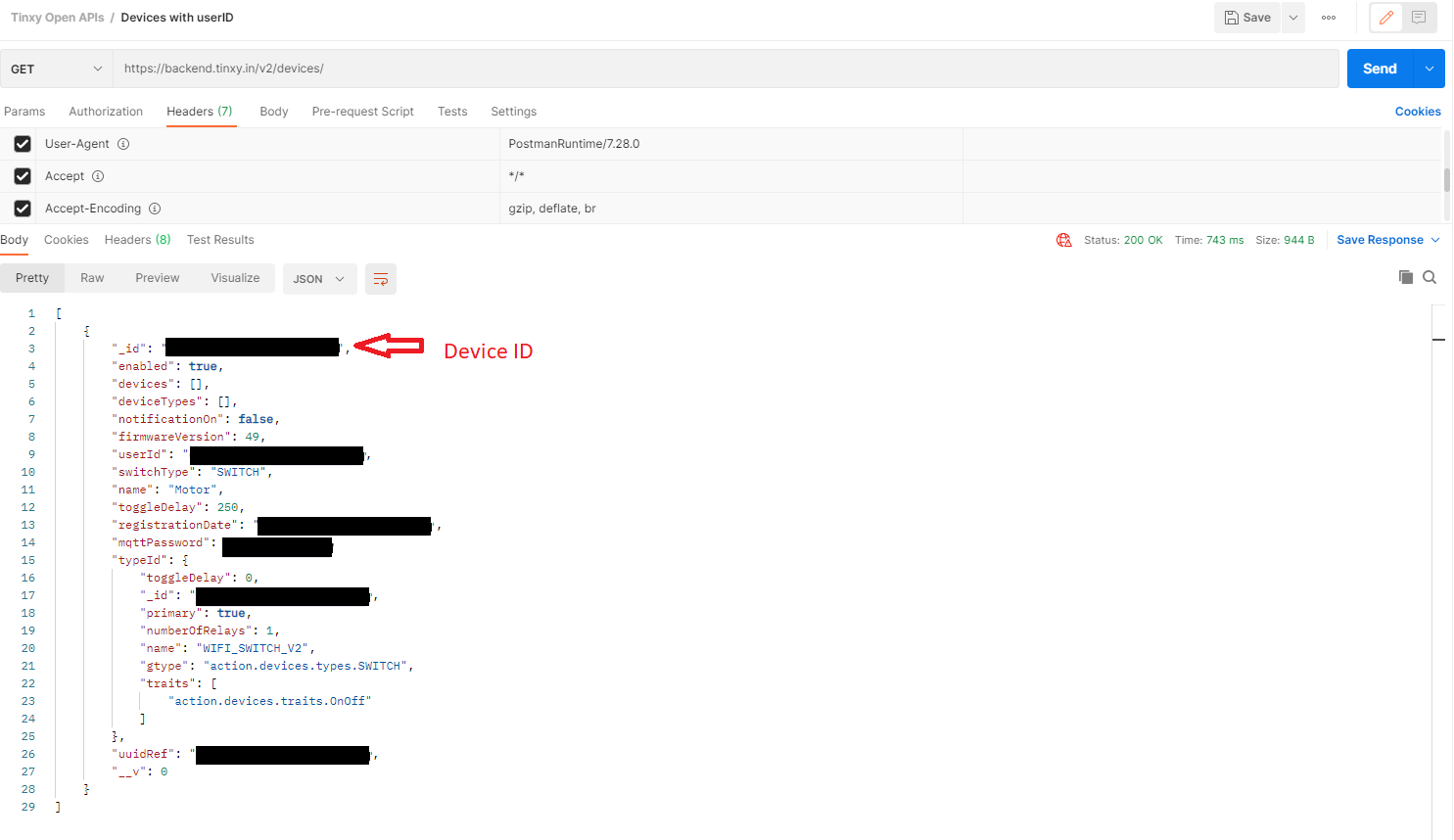
As for tackling the 2nd problem, you can make use of IFTT webhooks (make a web request). Firstly you need to find out your tinxy device’s id, this can be done with the help of APIs provided by tinxy. You can download the json from this link and import it in Postman.
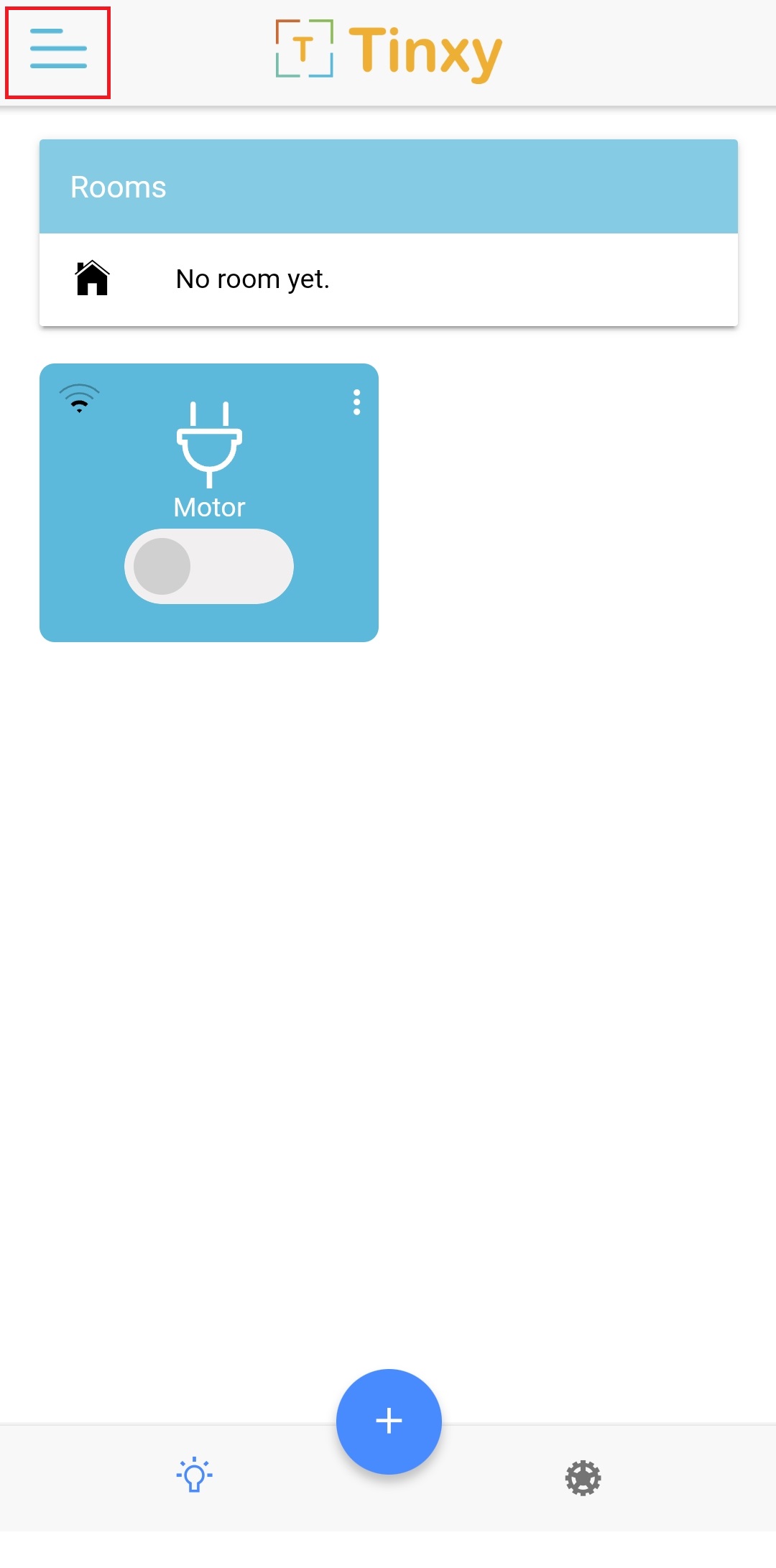
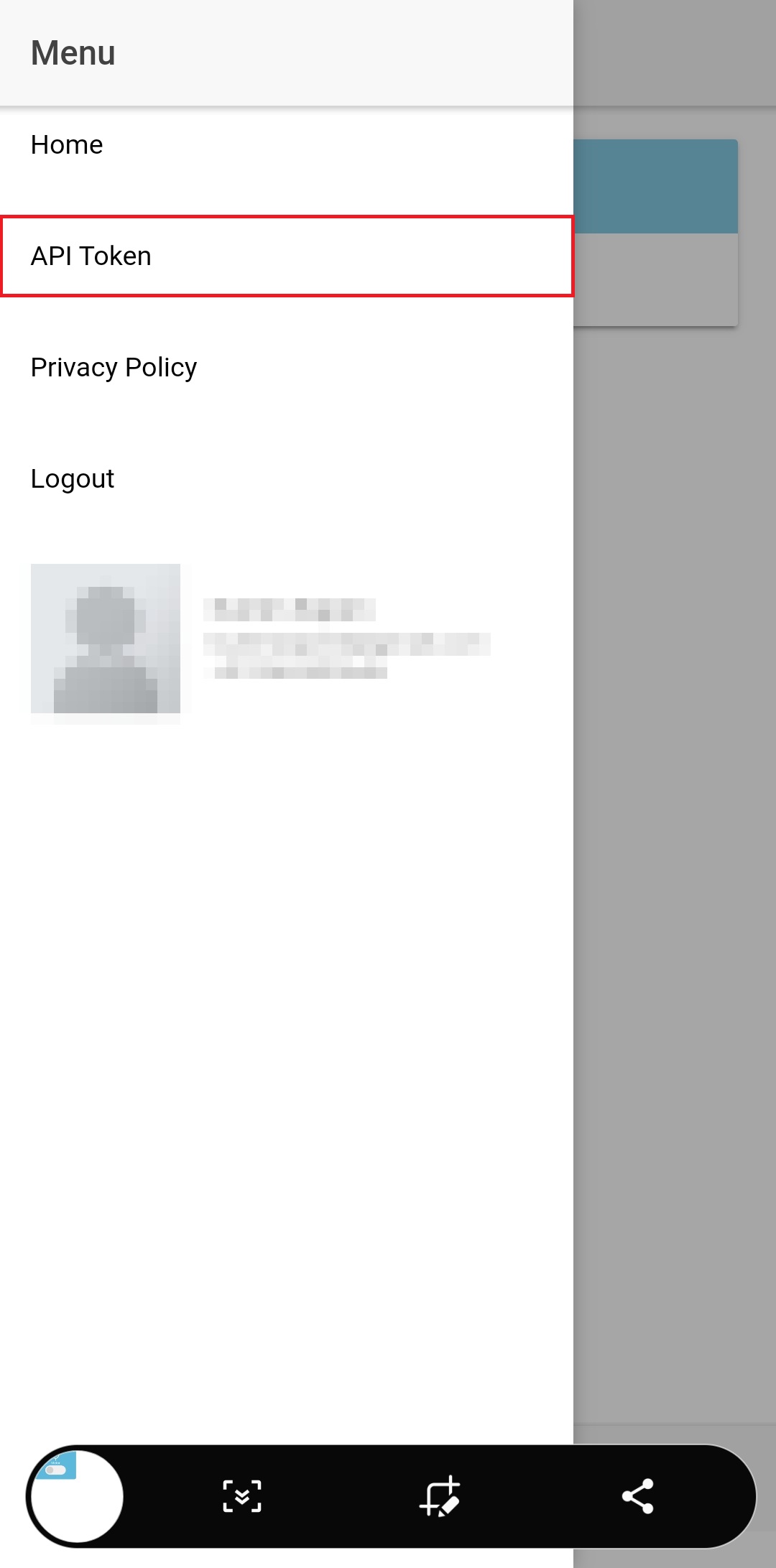
NOTE: API Token can be retrieved from Tinxy app (open app → click on top-left → click on API Token → get token) and should be used in the Authorization header.

You can make use of Devices with userID API to find ids for all your devices.
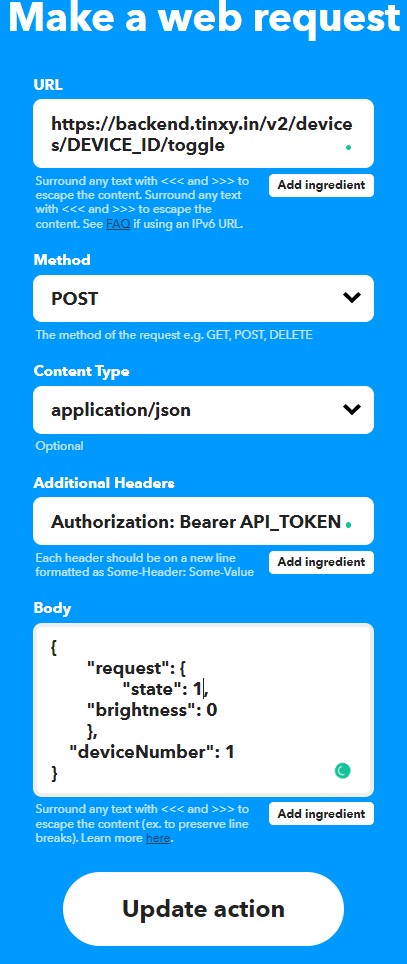
Now with the help of Device Toggle API, you can toggle the state of the device by creating a webhook in IFTTT. Eg:
Method: POST
Content Type: Application/Json
Url: https://backend.tinxy.in/v2/devices/YOUR_DEVICE_ID/toggle
Header: Authorization: Bearer *YOUR_API_TOKEN*
Payload:
{
	"request": {
		"state": 1,
        "brightness": 0
	},
    "deviceNumber": 1
}
Finally your IFTT applet will look like:
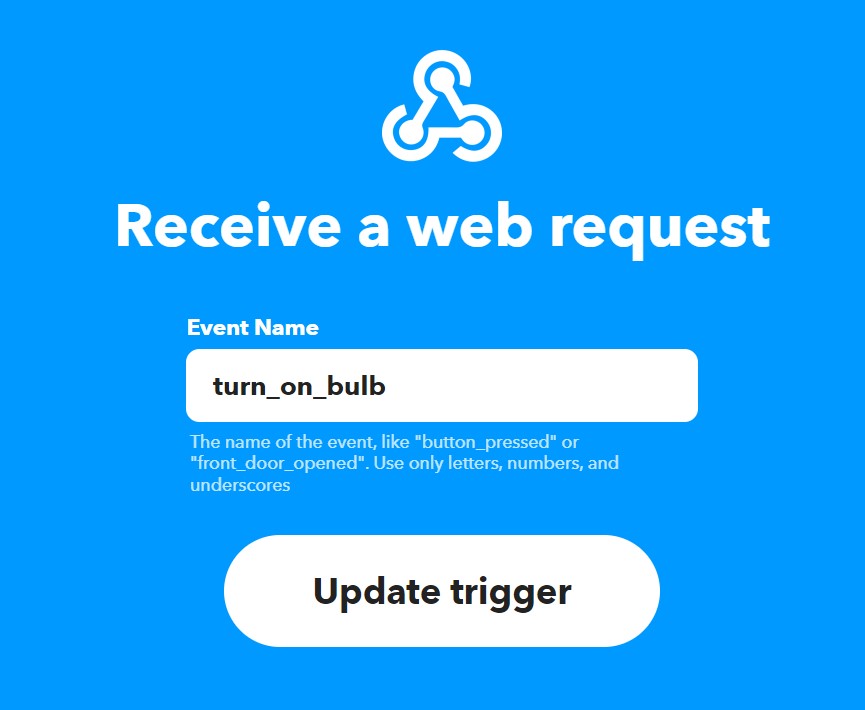
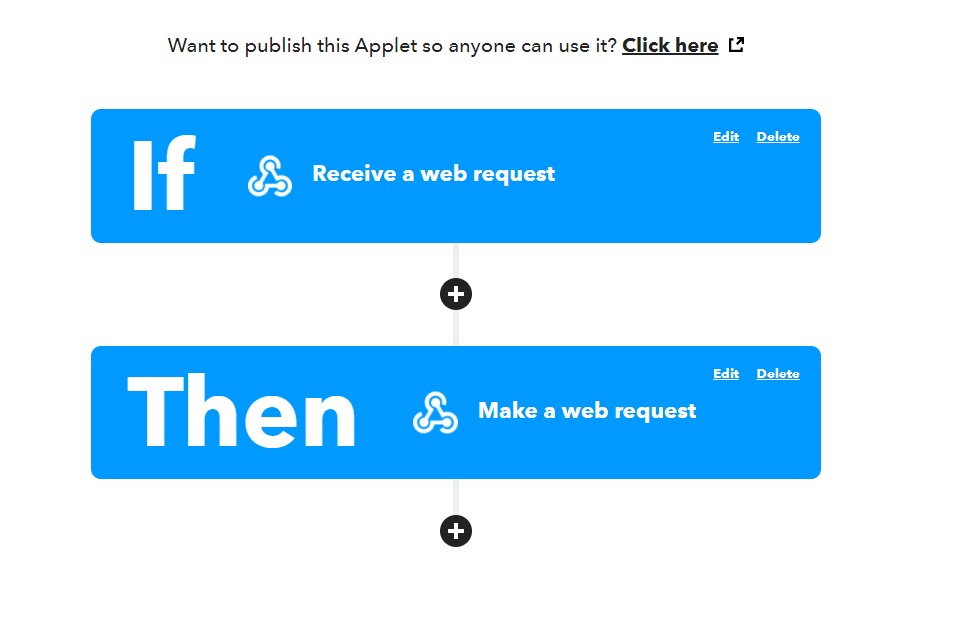
The complete flow will look like: Android Phone → NFC Scan → Trigger Webhook(receive a web request) → Webhook (make web request to tinxy) → toggle switch on/off
I hope this will help solve your problem.
Cheers.