How to automate a Tinxy device with an RF motion sensor (auto on/off)
This setup turns a Tinxy device on when the sensor detects motion and switches it off automatically once the room is empty. I’m using a bathroom tubelight here, but it works the same way with any Tinxy device.
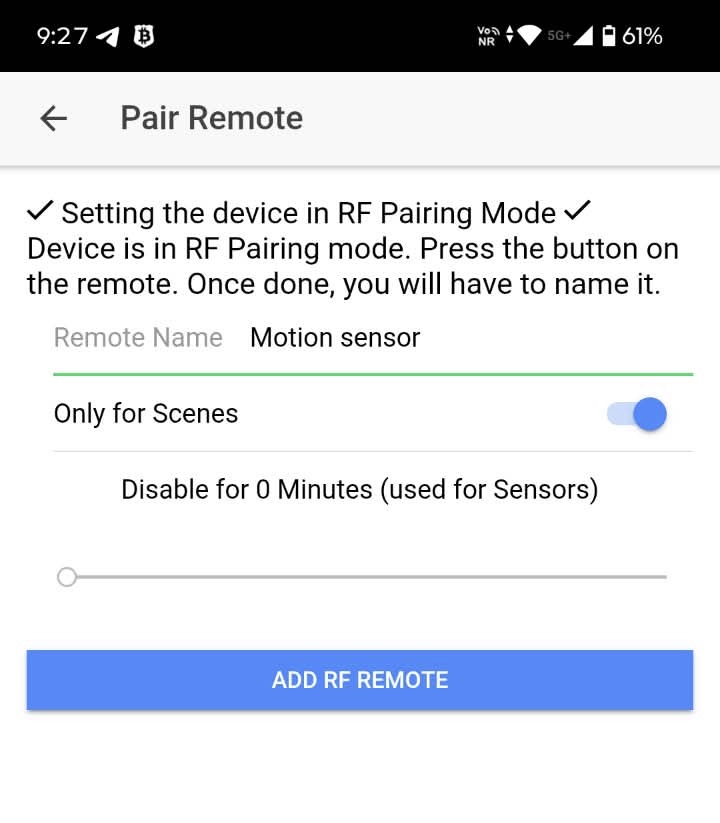
Step 1: Pair the motion sensor as an RF remote
- In the Tinxy app, go to Device menu (Three dots) → Remotes → Add RF Remote.
- The app puts the device into RF pairing mode and starts listening for RF signals.
- Switch on the motion sensor, or wave a hand in front of it, so it sends a signal. It should then pair.
- Give it a name, for example Motion sensor.
- Turn on “Only for Scenes”. The sensor then won’t control the device directly and only triggers scenes.
- Tap Add RF Remote.
Step 2: Create the scene
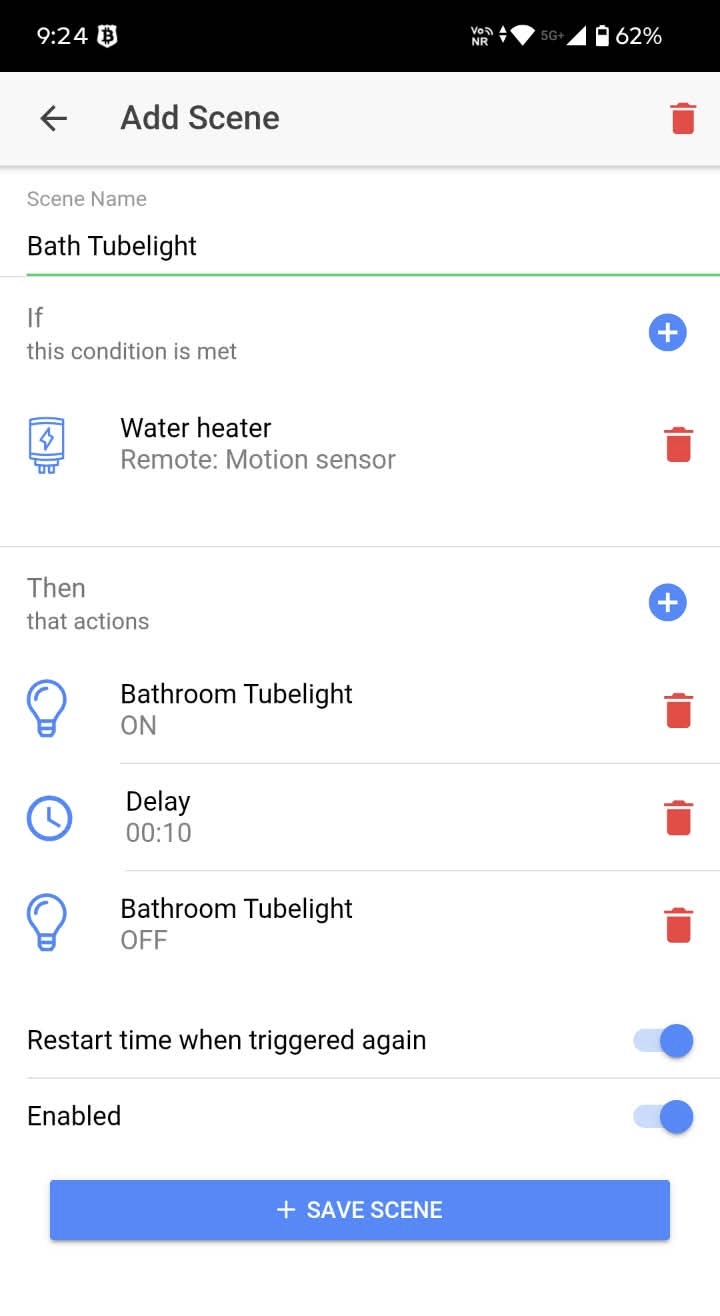
- Create a new scene and name it, for example Bath Tubelight.
- If (condition): choose the motion sensor remote you just added.
- Then (actions):
- Bathroom Tubelight → ON
- Delay → 10 minutes, or however long you want
- Bathroom Tubelight → OFF
- Turn on “Restart time when triggered again”. This is the important part.
- Make sure Enabled is on, then tap Save Scene.
Why “Restart time when triggered again” matters
Each new motion detection resets the 10-minute timer. While you’re in the room and moving around, the light stays on. It only turns off after 10 minutes with no motion. Without this setting, the light switches off 10 minutes after the first trigger, even if you’re still in the room.
Tips
- You can replace the light with any Tinxy device, such as a fan, an exhaust fan or a geyser.
- Set the delay to suit the room. A short delay works for corridors, a longer one for bathrooms.